

1. VG - is a Virtual Generator - everyone has this - it's not one of your connected gens. It doesn't control anything.
2. To address the other component of this question, the Kundalini preset and Schumann-Resonator preset each require a generator. Since the Kundalini only repeats 4 times a day, there is not much time to try and say chain the two together into one generator over one day. However, you might be able to say run each for 2 to 3 days and alternate them. Given that the Schumann-Resonator is doing more than just 7.83 Hz, combining them is really not an option either. However, you could maybe incorporate just frequency 7.83 to the Kundalini preset but not sure how this will work out given the limited exposure it would have -- one 3 minute session every 6 hours. For those of you wondering why Kundalini is a 6 hour preset when we recommend only 4 hours or less. Each section in the Kundalini preset is on a mini repeat cycle. It takes 6 hours to go through all sub cycles. Each section has been timed to be applied with rests periods so that no one section is hammered 24/7.
3. Go to control tab - look to left for Generator Count Be sure you have 3. Also tick the top choice - display port number. This will display your port number on the generator when it is "off" not running frequencies but still on and lit up.
4. I read the entire thread to get caught up. I couldn't tell if you checked this area on the System tab:
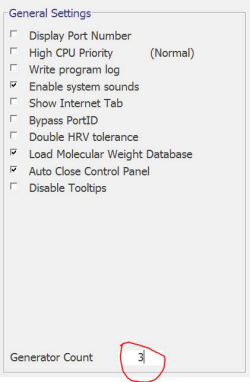
5. Not the display port number, but the number of generators (in red) that Spooky2 is to look for on start-up. If this is set to 2, it will never find your 3rd generator.
6. If a User saves a Preset, or a modified Preset, it shows up in their User folder in the Presets tab - as shown in the picture:
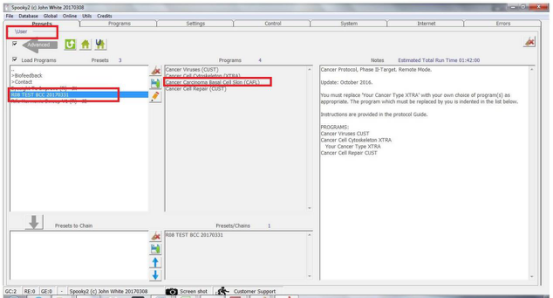
7. If it isn't in the User folder, then it didn't get saved properly. The Preset MUST be saved when in the Preset tab. The procedure is: Load the Preset to be modified in the Preset tab. Move to the Programs tab and do the required modifications. Return to the Preset tab and SAVE.
8. The User Guide, where everything else Spooky is. Search "screenshot" and step through the results and it will show you the entries for it. What to click, where to find the files, etc.
For more information please check this link:
https://www.facebook.com/groups/spooky2/permalink/757747304387175
Comments
Please sign in to leave a comment.